Matt
Administrator
-
Joined
-
Last visited
Everything posted by Matt
-
Thanks for the feedback. This was been added to our bug list.
-
Thanks for the feedback. You can post here or in the discord. There was an issue with ratings that we were working on, so apparently we didn't get it fixed. We'll take a look. Thanks again.
-
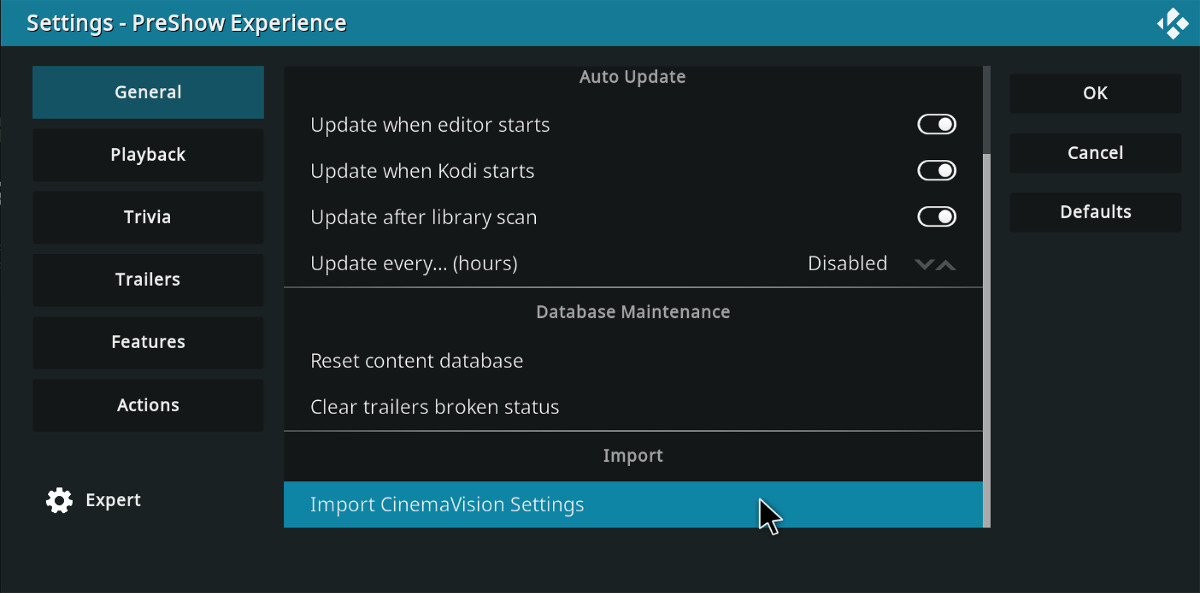
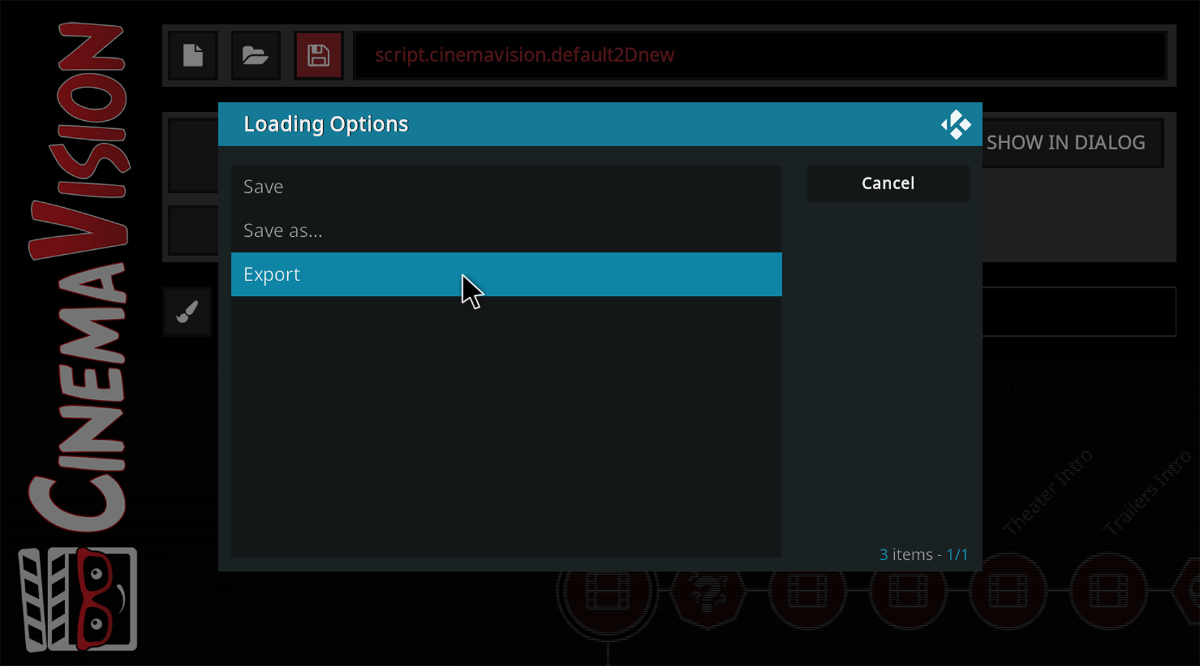
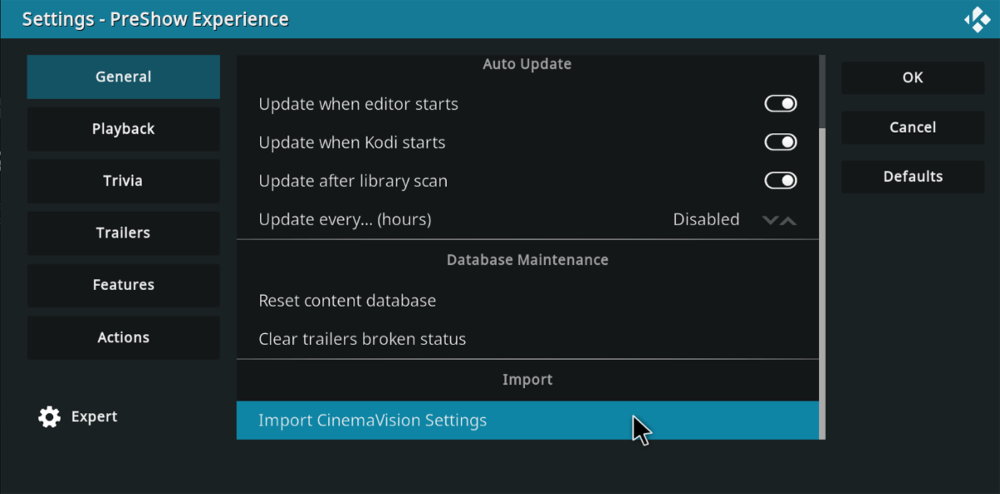
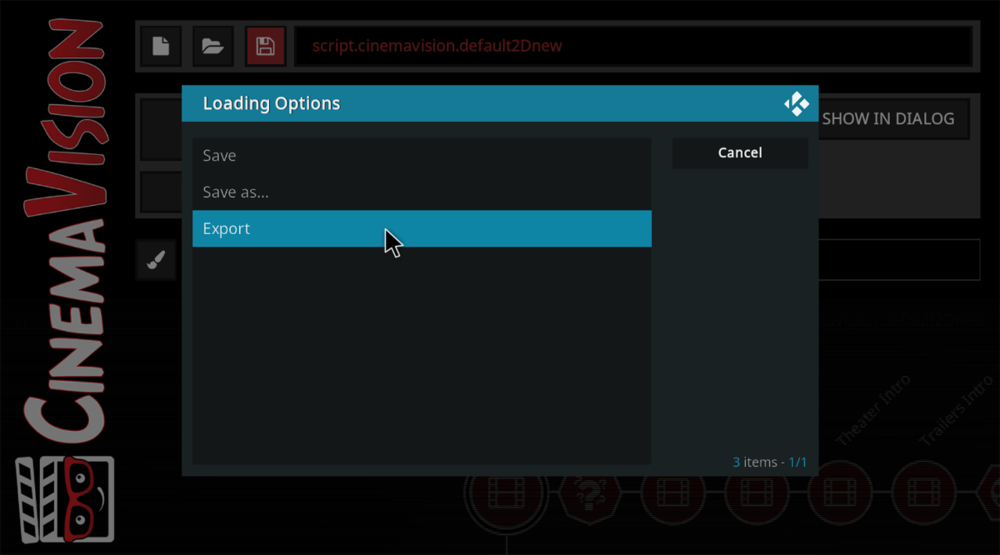
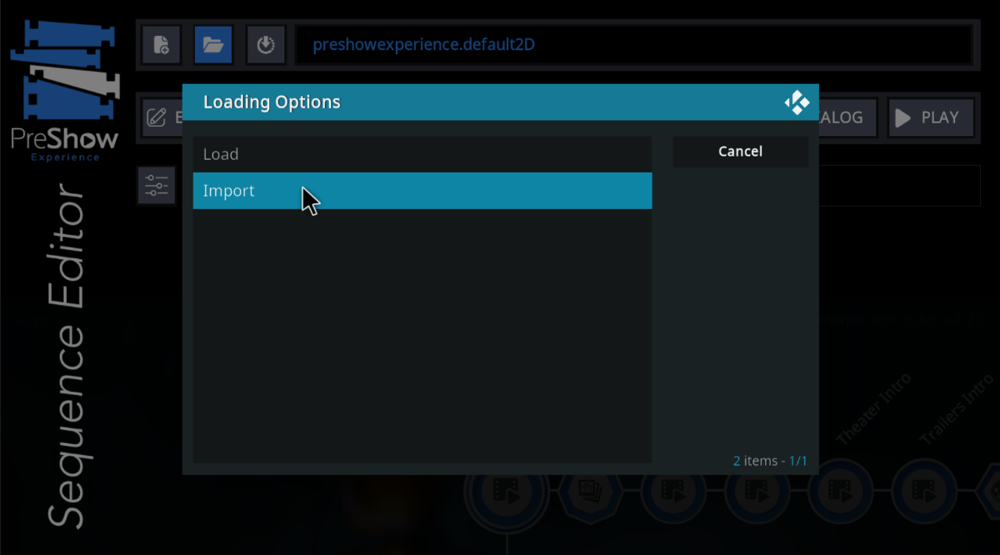
Settings You can import your CV settings into CinemaVision by clicking on the import text at the bottom of the general settings section. Sequences There are a couple of ways that you can transfer your sequences into PreShow Experience. Option 1 is to export your sequence out of CV. Open the sequence editor and load the sequence. Then click the save button and then export. Save it to a location that you can easily find. In PreShow Experience, you can then import the sequence. Go to the sequence editor and click the load icon and then click import. Navigate to the file and open it. Then save it. Sequences in PreShow Experience end with .pseseq. Option 2 is to manually move your sequences. If you have multiple sequences, this may be the quicker option. Navigate to wherever you set your content path in the settings and the to the Sequences folder. If you are importing your settings from CV you just need to rename the file extension from .cvseq to .pseseq. If you are setting up a fresh install, you will need top copy the files to the Sequence folder of the new location and then change the file extension. Please let me know if you have any questions.
-
What are some of the things that you automate with your sequences?
-
Let me know if there's any general bumper text that people think should be created.
-
What hardware do you use to run Kodi?
-
PreshowBumper-DXmas View File PreshowBumper-DXmas.mp4 Submitter Matt Submitted 02/01/2023 Category PreShow Videos
-
-
PreshowBumber-Christmas Magic View File Submitter Matt Submitted 02/01/2023 Category PreShow Videos
-
-
Retro-Welcome-80sOutliness View File Submitter Matt Submitted 02/01/2023 Category PreShow Videos
-
-
Sci-Fi-Welcome-HAL View File Submitter Matt Submitted 02/01/2023 Category PreShow Videos
-
-
General-Welcome-Energy View File Submitter Matt Submitted 02/01/2023 Category PreShow Videos
-
-
Drama-Welcome-Clouds View File Submitter Matt Submitted 02/01/2023 Category PreShow Videos
-
-
Digital Cinema-Welcome View File Submitter Matt Submitted 02/01/2023 Category PreShow Videos
-
-
Action-Welcome-Transform View File Submitter Matt Submitted 02/01/2023 Category PreShow Videos
-
-
Action-Welcome-Ninjas View File Submitter Matt Submitted 02/01/2023 Category PreShow Videos
-
-
PreShow Experience Bumper Samples View File PreShow Experience Bumper Samples Submitter Matt Submitted 02/01/2023 Category Bumpers