

- Open Club
- 5 members
Trivia Metadata testing v.1
- Replies 5
- Views 904
- Created
- Last Reply
Top Posters In This Topic
-
Matt 3 posts
-
NightWatcherTheater 2 posts

Posted Images

Featured Replies
Topics
-
Hello, I recently updated my Hue Bridge to the Bridge Pro and now the lights won't work with PreShow Experience. This is all due to the Bridge Pro dropping HTTP support in favor of HTTPS with a self signed certificate (uses its' SN as the Common Name in the certificate). Basically anytime you try to access the Bridge Pro's API, it will fail SSL verification. A quick, but insecure, way to fix this would be to turn off SSL verification when making URL calls. Any way to make that an option in
-
All IMDB trailers are broken, including upcoming and classic trailers. I don't know if there is a way to resolve the issue.
-
Hi all, I cannot use the addon for a while. Kodi 21.2 build. The addon starts up but when I try to edit the sequence, the buttons are not visible and I cannot do anything. I tried to import one of my old sequence and it seems like loads in but anything I try to choose there is no buttons after the bottom line. The play button gives me complete black screen and I have to kill kodi and restart it again. I have installed the addon from the repo 0.3.7.a1 on android tv. my content path is in the netw
-
IMAX Enhanced - Bumper (Short) 4K Dolby TrueHD 5.1 File Information Submitter ToastyMaster07 Submitted 06/26/2026 Category Brands View File
-
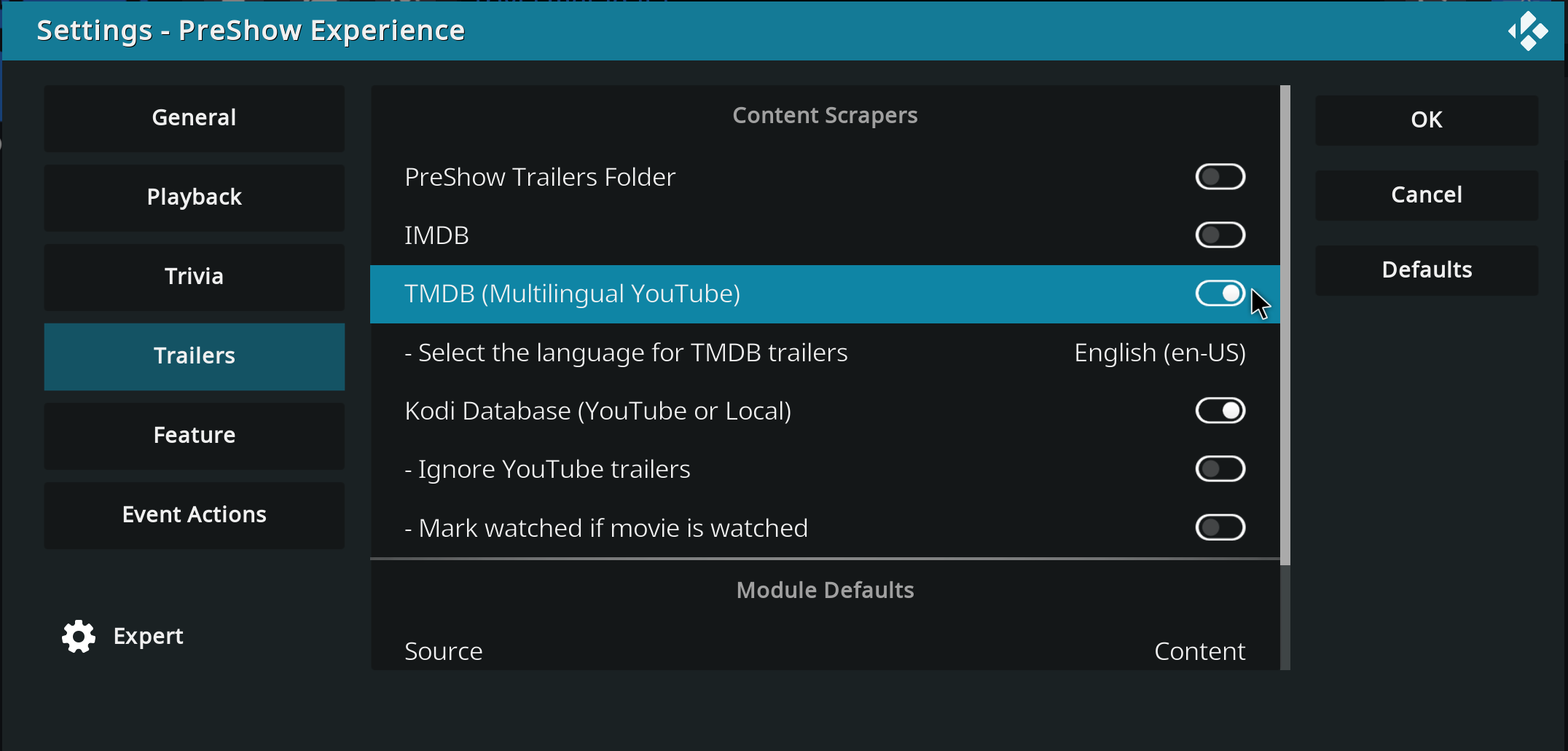
Hello, I hope you're all well... Until yesterday, my trailers in the pre-show were working normally... I have it configured to show trailers for movies I don't own, with the intention of discovering new things. But today it stopped working; it only pulls trailers for movies I have in the database, and if I disable the Kodi database option, it doesn't play any trailers at all, it just stays stuck on a black screen. Does anyone have any idea how I can solve this problem? Thank you in advance.




For the initial release of the trivia metadata I'd like for you to test the basic scoring functionality.
Here is the trivia folder to be installed in your PreShow trivia content folder.
The trivia testing pack includes the following:
Rating
G.jpg
PG-13.jpg
PG.jpg
R.jpg
Decade
1950s.jpg
1960s.jpg
1970s.jpg
1980s.jpg
1990s.jpg
2000s.jpg
2010s.jpg
2020s.jpg
Genres
Action.jpg
Adventure.jpg
Animation.jpg
Comedy.jpg
Crime.jpg
Documentary.jpg
Drama.jpg
Family.jpg
Fantasy.jpg
History.jpg
Horror.jpg
Music.jpg
Mystery.jpg
Romance.jpg
Science Fiction.jpg
Thriller.jpg
War.jpg
Western.jpg
These are all generic and have just been created for the purpose of this round of testing.
I currently have ratings set to +20 in the ranking, so that should be the 1st thing that you see. Then the date range is worth +15 so you should see that next. Then each genre is worth +10.
This should be a straight forward test, where you see 1 rating (note that I don't currently have anything for NR or NC17), 1 decade and an image for each genre. It is currently configured to only show trivia with metadata for testing purposes. These should be the only slides that you see. I will have it use trivia with or without metadata in the public versions.
IMPORTANT: Trivia will not show anything if you have a folder selected.
This is the correct behavior. It just doesn't play anything right now because I've disabled all other trivia for this testing.
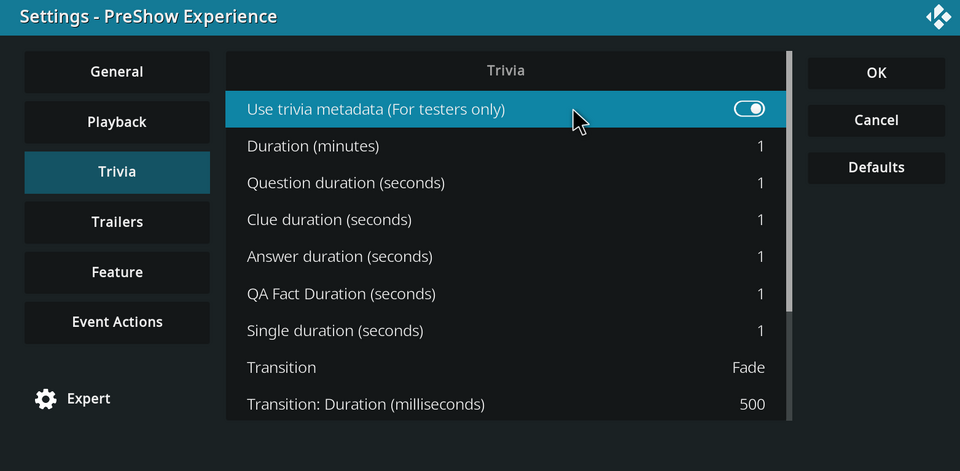
To enable the trivia metadata functionality, go into your PreShow settings and enable "Use trivia metadata" in the Trivia category. When you are finished testing, disable this to return to normal functionality.
I'd like for you to test the trivia metadata functionality in the Sequence editor and with a few movies in your collection.
To test in the sequence editor, please configure your feature metadata in the Feature category of PreShow's settings.
Thank you for testing this out.
I will respond to this thread when the repo is updated with the functionality and the trivia testing pack has been uploaded.
Please feel free to ask any questions that you may have.